> For the complete documentation index, see [llms.txt](https://docs.relevant-digital.com/llms.txt). Markdown versions of documentation pages are available by appending `.md` to page URLs; this page is available as [Markdown](https://docs.relevant-digital.com/ad-revenue-insights/alarms-and-notifications/date-based-event-notifications-in-ad-revenue-insights.md).
# Date-Based Event Notifications in Ad Revenue Insights
Add date-based events to Ad Revenue Insights so important changes and incidents appear directly in report graphs.
The date-based event notification is a great way to share information within your company, ensuring that everyone is aware of significant events that have occurred.
Event notifications allow you to add notes that appear directly in your reports. You can create both private and public events.
### Adding an Event
Date-based event notifications can be added in two ways.
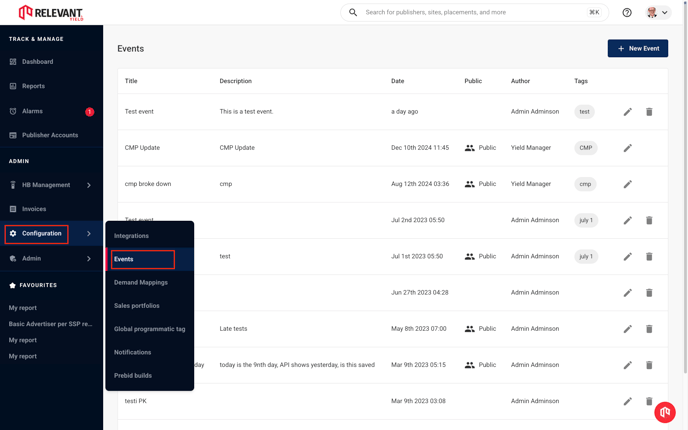
You can either add your notification under **Configuration** → **Events**:
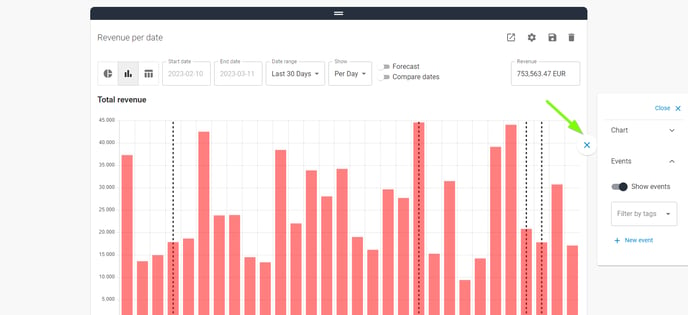
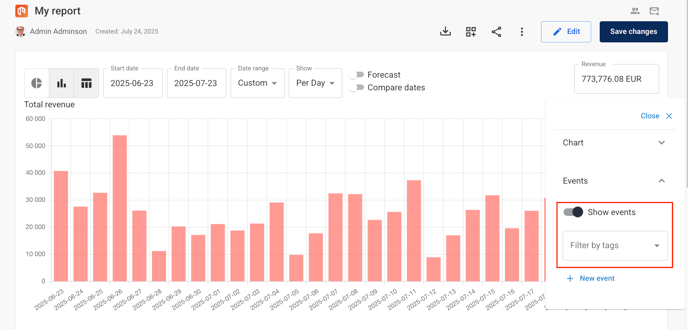
Or you can add it directly in the graph by using the toggle on the right-hand side of the report:
#### Adding an Event in the Event Tab
We will focus on the **Configuration → Events** option, as it also includes a general overview of all Events. However, new Events can be created from both this section and directly within the graph.
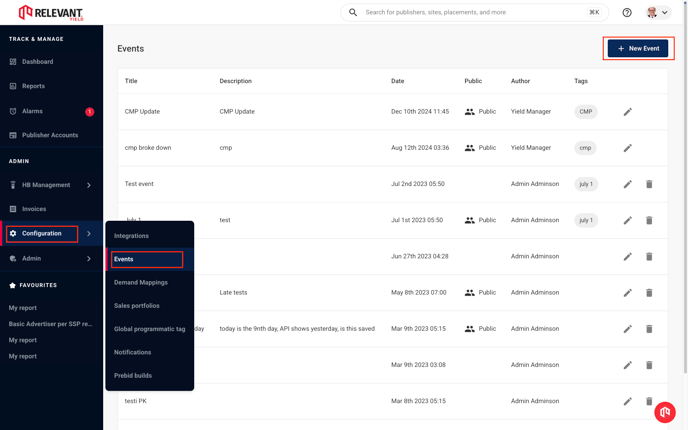
When you click **Events** in the Configuration menu, you enter the **Events Overview** area, where you can create new Events or edit existing ones.
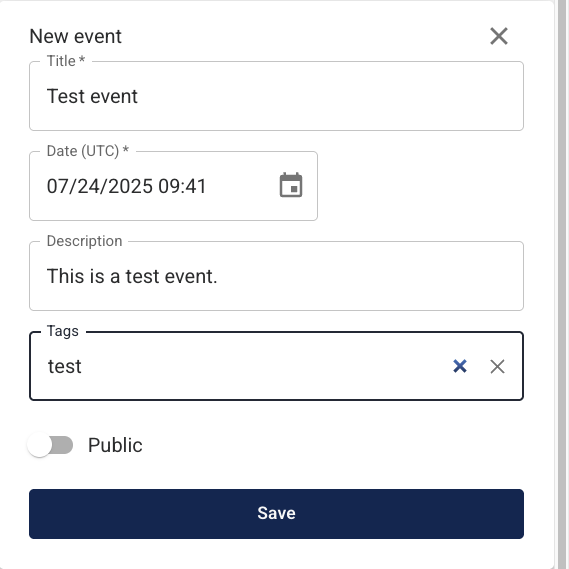
To add a new Event, provide a **name**, which will appear when hovering over the line in the graph, and a **detailed description**. Use the **Event dates** to indicate when the Event occurred. Events are listed chronologically, with the most recent at the top.
You can also choose whether the Event should be **Public** (visible to other Admin users), and whether it should be **tagged**. Adding a tag makes it easier to filter specific Events in the graph.
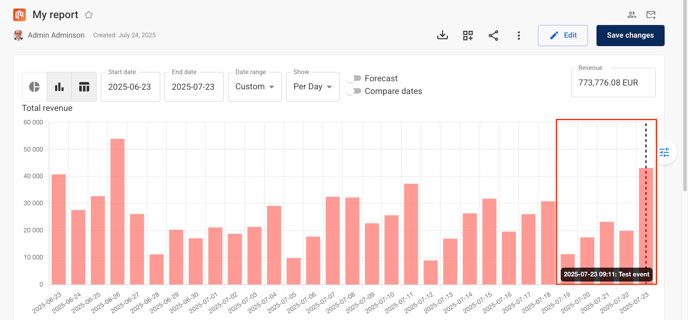
Once created, the Event will appear in the graphs, provided it is enabled in the graph options and not filtered out by its Tag.
### View Events in Reports
To view events in your reports, click the toggle on the right-hand side of the graph and select **Events** → **Show Events**. You can also filter events based on the tags you have assigned.
A grey dotted line will appear in your report to indicate that there is an event notification for the selected time period. Hover over the line to see the event name and the time it occurred.
### Related articles
* [Ad Revenue Insights - Dimensions and Metrics](/ad-revenue-insights/dashboards-and-reporting/ad-revenue-insights-dimensions-and-metrics.md)
* [Setting Up Ad Revenue Insights in Relevant Yield](/ad-revenue-insights/setup/setting-up-ad-revenue-insights-in-relevant-yield.md)
* [How to Use Dashboards and Reports](/general-platform/reports-and-dashboards/how-to-use-dashboards-and-reports.md)
* [Mapping Ad Server and SSP Placement IDs to Relevant Yield Ad Revenue Insights Placements](/ad-revenue-insights/mapping/mapping-ad-server-and-ssp-placement-ids-to-relevant-yield-ad-revenue-insights-placements.md)
* [Setting Up a New Ad Server Connection](/ad-revenue-insights/data-connections/setting-up-a-new-ad-server-connection.md)
---
# Agent Instructions
This documentation is published with GitBook. GitBook is the documentation platform designed so that both humans and AI agents can read, navigate, and reason over technical content effectively. Learn more at gitbook.com.
## Querying This Documentation
If you need additional information that is not directly available in this page, you can query the documentation dynamically by asking a question.
Perform an HTTP GET request on the current page URL with the `ask` query parameter, and the optional `goal` query parameter:
```
GET https://docs.relevant-digital.com/ad-revenue-insights/alarms-and-notifications/date-based-event-notifications-in-ad-revenue-insights.md?ask=&goal=
```
`ask` is the immediate question: it should be specific, self-contained, and written in natural language.
`goal` is optional and describes the broader end goal you are ultimately trying to accomplish on behalf of the user. GitBook uses it to tailor the answer towards what is most useful for that goal.
The response will contain a direct answer to the question and relevant excerpts and sources from the documentation.
Use this mechanism when the answer is not explicitly present in the current page, you need clarification or additional context, or you want to retrieve related documentation sections.