> For the complete documentation index, see [llms.txt](https://docs.relevant-digital.com/llms.txt). Markdown versions of documentation pages are available by appending `.md` to page URLs; this page is available as [Markdown](https://docs.relevant-digital.com/ad-revenue-insights/data-connections/setting-up-a-new-ad-server-connection.md).
# Setting Up a New Ad Server Connection
Connect a new ad server in Relevant Yield by creating an API user, adding the integration, and validating imported data.
Relevant Yield collects data from the API sources on a daily basis. Depending on your geographical location, the timing may vary slightly throughout the day, but we aim to always have fresh data available when you start work.
{% stepper %}
{% step %}
## Create an API User
Your Relevant Digital Technical Account Manager will provide you with an "@relevant-digital.com" email address that you should use to create a new API user in the ad server. Depending on the ad server, the API user may differ from a normal user. **The most important thing is that the user has access to the API features of the ad server**.
This may require you to inform the ad server provider about the **frequency of the API calls**, which would be roughly **five calls per day**. Most ad servers do not charge extra for API access, so it is usually very easy to obtain this access.
{% endstep %}
{% step %}
## Add a New Ad Server Connection in Relevant Yield
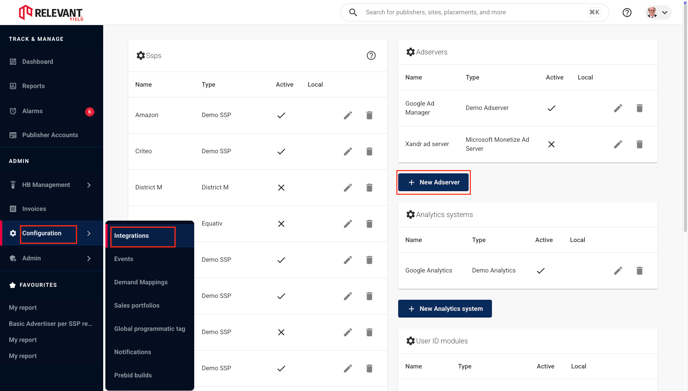
To add a new ad server connection, go to **Configuration** → **Integrations** and click **+ New Ad Server**.
### Configure Settings for the Connection
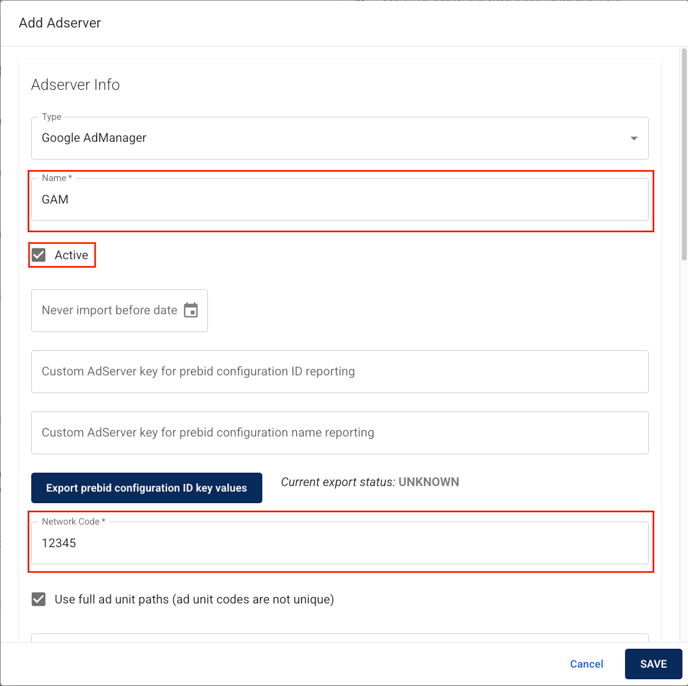
The required fields are **Name** and **Network Code**. Some of the other settings depend on the specific ad server. The integration is marked as active by default. If you untick this option, the system will stop automatically retrieving data for the integration.
If you have any questions regarding the settings, please don’t hesitate to contact our support team.
### Add Credentials to Connect Relevant Yield with Your Ad Server
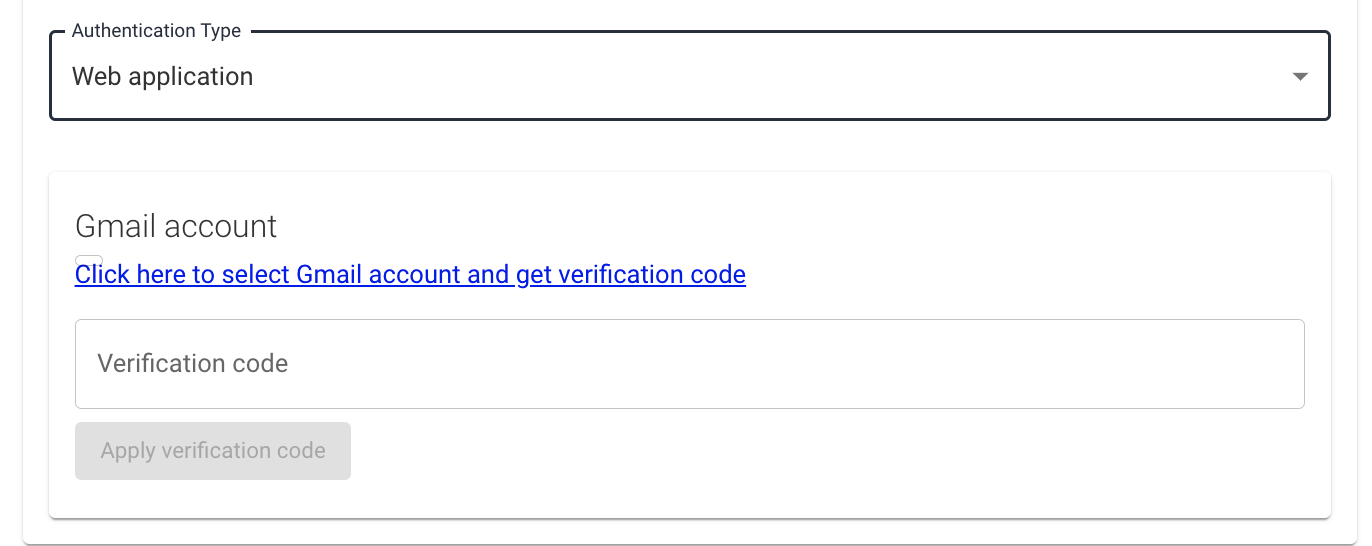
You will need to add credentials (the newly created API user) at the bottom of the settings pop-up. Authentication methods may vary between different ad servers, so if you need assistance when adding credentials, **please contact Relevant Digital Support**.
Once your credentials have been added, the system should begin to populate with data either automatically the following day or by triggering a manual import.
{% endstep %}
{% step %}
## See Ad Server Data
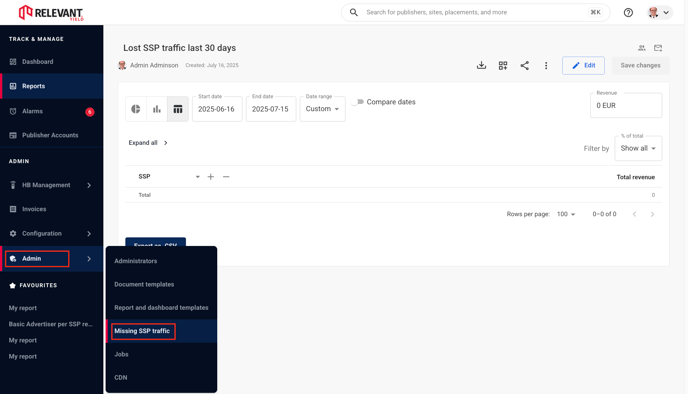
Once you see data coming in (please note that automatic ad server imports may take up to a day), you can use the **Admin → Missing SSP Traffic** section to view the names of the imported sites and placements. From there, you can proceed to map the new SSP IDs to the corresponding websites.
{% hint style="info" %}
It is possible to log detailed data from the Xandr (formerly AppNexus) ad server through the Relevant Yield interface. Please note that Xandr normally charges extra to extract this data, which incurs an additional cost from them. We also charge a small fee to cover the technical cost.
{% endhint %}
{% endstep %}
{% endstepper %}
---
# Agent Instructions
This documentation is published with GitBook. GitBook is the documentation platform designed so that both humans and AI agents can read, navigate, and reason over technical content effectively. Learn more at gitbook.com.
## Querying This Documentation
If you need additional information that is not directly available in this page, you can query the documentation dynamically by asking a question.
Perform an HTTP GET request on the current page URL with the `ask` query parameter, and the optional `goal` query parameter:
```
GET https://docs.relevant-digital.com/ad-revenue-insights/data-connections/setting-up-a-new-ad-server-connection.md?ask=&goal=
```
`ask` is the immediate question: it should be specific, self-contained, and written in natural language.
`goal` is optional and describes the broader end goal you are ultimately trying to accomplish on behalf of the user. GitBook uses it to tailor the answer towards what is most useful for that goal.
The response will contain a direct answer to the question and relevant excerpts and sources from the documentation.
Use this mechanism when the answer is not explicitly present in the current page, you need clarification or additional context, or you want to retrieve related documentation sections.