> For the complete documentation index, see [llms.txt](https://docs.relevant-digital.com/llms.txt). Markdown versions of documentation pages are available by appending `.md` to page URLs; this page is available as [Markdown](https://docs.relevant-digital.com/ad-revenue-insights/data-connections/setting-up-a-new-analytics-system-connection.md).
# Setting Up a New Analytics System Connection
Connect an analytics system to import page view data into Ad Revenue Insights for dashboards, reports, and statement generation.
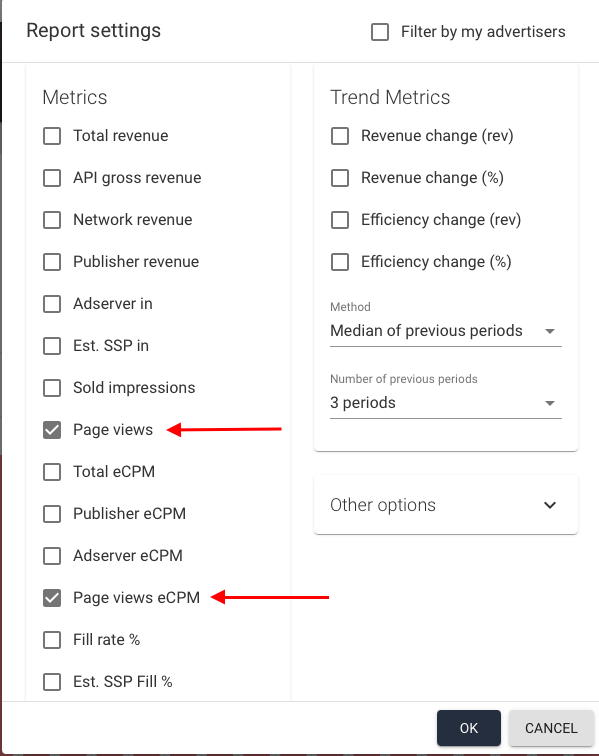
This article explains how to set up an Analytics API integration in Yield. By adding an analytics adapter, you gain access to two additional metrics: page views and page views eCPM.
On July 1, 2023 standard Universal Google Analytics properties stopped processing data. Google recommends to make a switch to Google Analytics 4.
### Why Should You Add an Analytics Adapter?
Adding an Analytics adapter gives you access to additional metrics in your Ad Revenue Insights dashboards and reports. It also allows these metrics to be used in the statement generation tool.
The available metrics are:
* **Page views**
* **Page views eCPM**
{% hint style="info" %}
Depending on the dimensions selected, these metrics may not always be available because analytics systems do not typically record every dimension. Site-level and date-level dimensions should always work with Analytics data, so these are usually where the main benefits lie.
{% endhint %}
### How to Add a New Analytics System Connection
{% stepper %}
{% step %}
#### Open analytics integrations
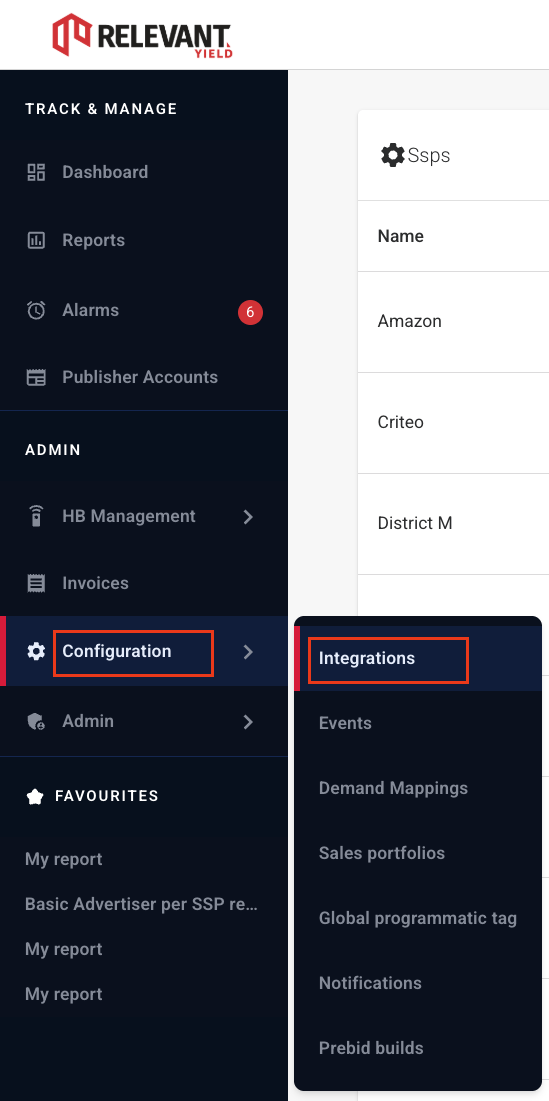
Go to **Configuration** → **Integrations**.
{% endstep %}
{% step %}
#### Create a new analytics system
Click **New Analytics system** in the bottom-right corner to open the configuration window.
{% endstep %}
{% step %}
#### Configure the connection
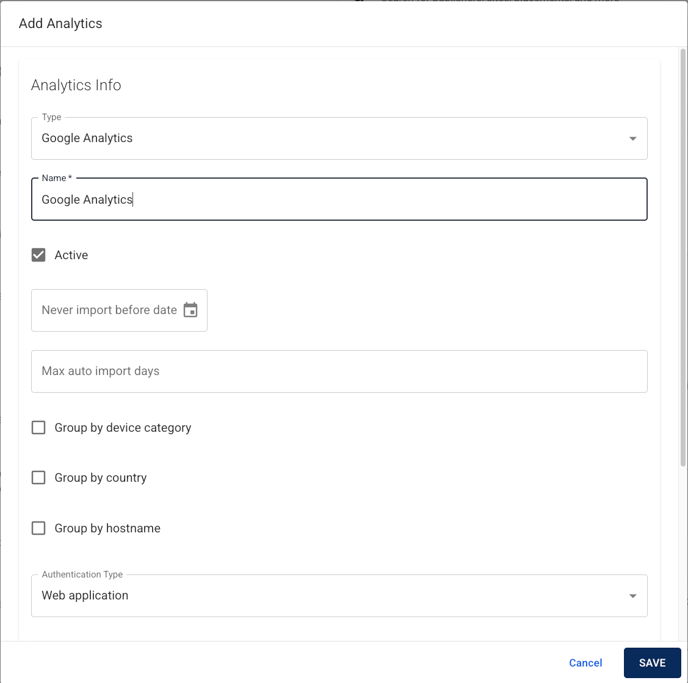
Select the analytics type and give the adapter a name.
Choose the import date range and how the data should be grouped:
* Group by device category
* Group by country
* Group by hostname
{% endstep %}
{% endstepper %}
#### Verify Your Account
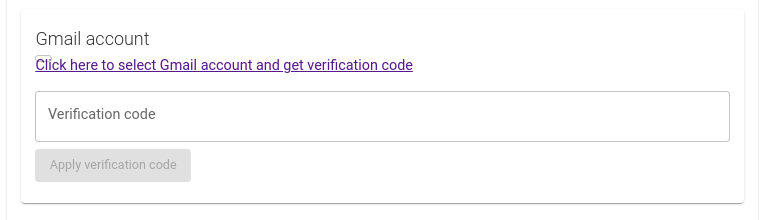
At the bottom of the configuration window you'll find Google verification field which will require you to log in to the connected Gmail account to retrieve a verification code.
Due to a recent Google Analytics feature update, account verification can now only be completed using an email address ending with “@relevant-digital.com”.
{% hint style="warning" %}
Please contact your Technical Account Manager or [support](mailto:support@relevant-digital.com) to complete the setup.
{% endhint %}
#### Import Analytics Profiles
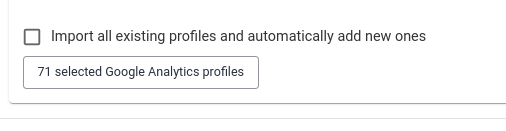
In the final part of the configuration, you will select the user to be connected to the data import by using their verification details. You can also choose whether to import all existing profiles and automatically add new ones, which is usually recommended.
{% hint style="warning" %}
If you tick **Import all existing profiles and automatically add new ones**, any Analytics data accessible to this user will be imported.
{% endhint %}
**Connecting Analytics Profile to a Website**
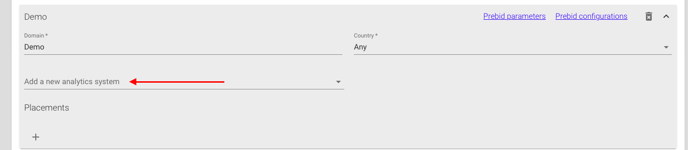
Once the data and profiles have been imported, you can add the website profiles to an existing website within your Publisher account. Simply go to Publisher accounts, select the Publisher and Website you wish to add the analytics data to, and choose the appropriate profile from the drop-down menu.
If you cannot find the correct profile, it is most likely because it has not been imported. Please review the final step of the setup process to ensure all available profiles are imported. Once the data is mapped, it should appear correctly in the report or dashboard site reporting options.
---
# Agent Instructions
This documentation is published with GitBook. GitBook is the documentation platform designed so that both humans and AI agents can read, navigate, and reason over technical content effectively. Learn more at gitbook.com.
## Querying This Documentation
If you need additional information that is not directly available in this page, you can query the documentation dynamically by asking a question.
Perform an HTTP GET request on the current page URL with the `ask` query parameter, and the optional `goal` query parameter:
```
GET https://docs.relevant-digital.com/ad-revenue-insights/data-connections/setting-up-a-new-analytics-system-connection.md?ask=&goal=
```
`ask` is the immediate question: it should be specific, self-contained, and written in natural language.
`goal` is optional and describes the broader end goal you are ultimately trying to accomplish on behalf of the user. GitBook uses it to tailor the answer towards what is most useful for that goal.
The response will contain a direct answer to the question and relevant excerpts and sources from the documentation.
Use this mechanism when the answer is not explicitly present in the current page, you need clarification or additional context, or you want to retrieve related documentation sections.