> For the complete documentation index, see [llms.txt](https://docs.relevant-digital.com/llms.txt). Markdown versions of documentation pages are available by appending `.md` to page URLs; this page is available as [Markdown](https://docs.relevant-digital.com/ad-revenue-insights/mapping/mapping-advertisers-buyers-and-dsps-for-reporting.md).
# Mapping advertisers, buyers and DSPs for reporting
Map advertisers, buyers and DSPs in Ad Revenue Insights to reduce fragmentation and keep reporting consistent across dashboards and reports.
The Ad Revenue Insights module lets you map advertisers, buyers, deals and DSPs. Mapping reduces data fragmentation and keeps reporting consistent.
Values collected through API connections can use different naming conventions. The same advertiser, buyer or DSP can appear under multiple entries.
Mapping lets you:
* Align advertisers and buyers with your CRM structure.
* Show each advertiser, buyer or DSP as a single entry.
* Create custom mappings for advertisers, buyers and business verticals.
Go to **Configuration** → **Demand Mappings** to access the feature. Use the **Advertisers**, **Buyers**, **Deals** and **DSPs** tabs to manage each mapping type.
### Mapping advertisers
Your account includes a default advertiser mapping with common mappings from Relevant Digital. Create a custom mapping when it does not meet your needs. Group entries under one advertiser when ad servers and SSPs use different names.
Advertiser mapping gives you:
* A single advertiser view across ad servers and SSPs.
* Reports that match your CRM advertiser structure.
* Automatic grouping for new advertiser names that match your rules.
Go to **Configuration** → **Demand Mappings** → **Advertisers**. Create an advertiser list or select the default list for dashboards and reports. You can select a different list for an individual dashboard or report.
To add or edit a list, use **"Add new mapping from target advertiser"**. Map multiple advertisers to one target advertiser. The first advertiser becomes the target. The mapping appears in the list on the right.
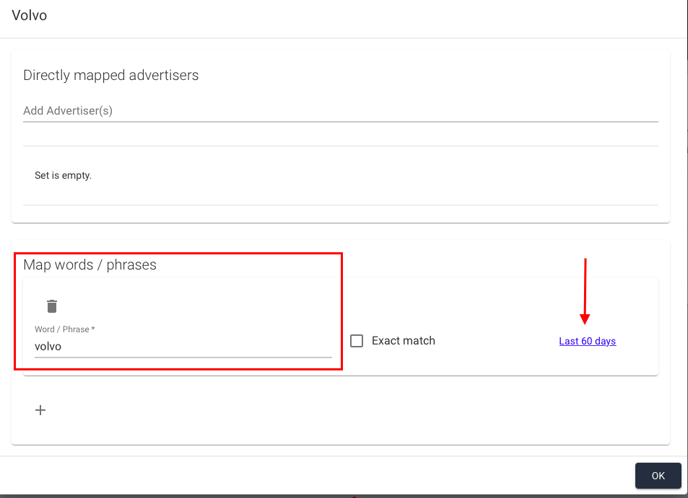
Review matches from the last 60 days after mapping an advertiser. Edit the advertiser to add semantic rules. These rules include new matching advertisers automatically.
Select **"Map words / phrases"** to add new matching advertisers as they enter Relevant Yield. Select **"Last 60 days"** to review a rule’s impact.
{% hint style="info" %}
The **Last 60 days** preview shows advertisers the rule could affect. It does not show the final mapping outcome. For example, a rule for `Volvo` can show `Volvo SUV` in the preview, even when `Volvo SUV` has its own mapping.
{% endhint %}
### Override deal mapping to a specific advertiser
Go to **Configuration** → **Demand Mappings** → **Deals**.
Deal mapping follows the advertiser mapping process. Override the incoming advertiser when a subcontractor creates a deal or the advertiser is mislabelled. Assign the deal to the correct advertiser instead.
Deal mapping gives you:
* Accurate advertiser attribution.
* Reports that better reflect your sales reality.
### Mapping buyers
Go to **Configuration** → **Demand Mappings** → **Buyers**. Buyer mapping follows the advertiser mapping process.
Buyer mapping gives you:
* A single buyer view across API connections.
* Consistent buyer dimensions in dashboards and reports.
* Buyer groups that align with your CRM structure.
### Mapping DSPs
SSPs can use different names for DSPs. DSP mapping unifies these names.
Go to **Configuration** → **Demand Mappings** → **DSPs**. DSP mapping follows the advertiser mapping process.
DSP mapping gives you:
* A single DSP view across SSP reporting.
* Consistent DSP names when SSPs use different conventions.
* Clearer comparison of DSP performance across demand sources.
### Use a mapping in a dashboard or report
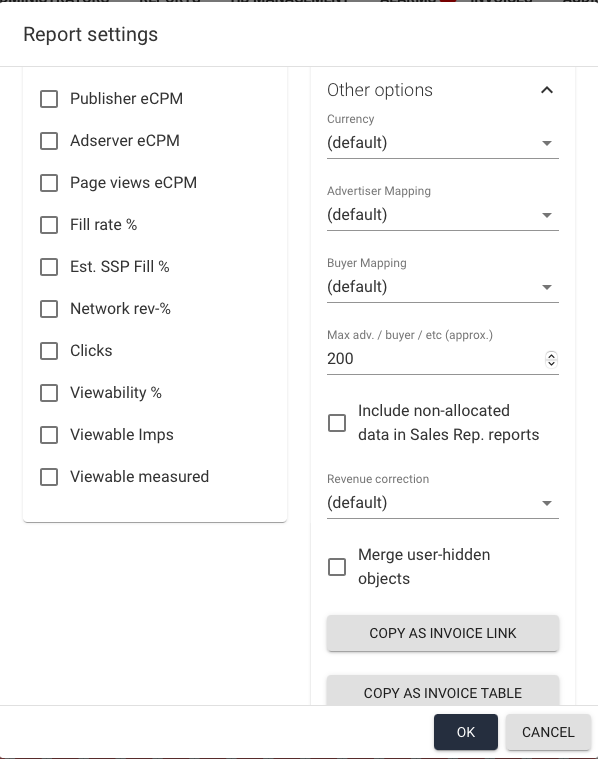
In each dashboard or report, select the advertiser or buyer mapping through **"Other options"** in the settings view.
When you use the buyer or advertiser dimension, the list of entries reflects the selected mapping. Different dashboards and reports can use different advertiser mappings.
### Parent mapping
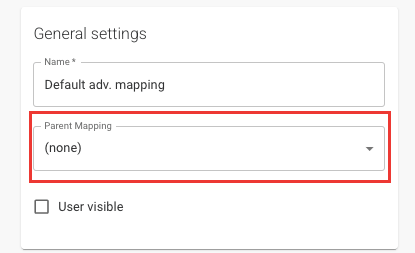
The **Parent mapping** option appears below each mapping group name. It attaches a personal mapping to an existing default or global mapping group. It does not change those groups or affect other users’ reports and mappings.
Set your mapping’s parent to your company’s default mapping group to use both together. Reports using your mapping apply your personal settings alongside the company-wide defaults.
---
# Agent Instructions
This documentation is published with GitBook. GitBook is the documentation platform designed so that both humans and AI agents can read, navigate, and reason over technical content effectively. Learn more at gitbook.com.
## Querying This Documentation
If you need additional information that is not directly available in this page, you can query the documentation dynamically by asking a question.
Perform an HTTP GET request on the current page URL with the `ask` query parameter, and the optional `goal` query parameter:
```
GET https://docs.relevant-digital.com/ad-revenue-insights/mapping/mapping-advertisers-buyers-and-dsps-for-reporting.md?ask=&goal=
```
`ask` is the immediate question: it should be specific, self-contained, and written in natural language.
`goal` is optional and describes the broader end goal you are ultimately trying to accomplish on behalf of the user. GitBook uses it to tailor the answer towards what is most useful for that goal.
The response will contain a direct answer to the question and relevant excerpts and sources from the documentation.
Use this mechanism when the answer is not explicitly present in the current page, you need clarification or additional context, or you want to retrieve related documentation sections.