> For the complete documentation index, see [llms.txt](https://docs.relevant-digital.com/llms.txt). Markdown versions of documentation pages are available by appending `.md` to page URLs; this page is available as [Markdown](https://docs.relevant-digital.com/general-platform/reports-and-dashboards/sharing-reports-in-yield.md).
# Sharing Reports in Yield
You can share reports within Yield or externally. This article covers link sharing, report sharing and report subscriptions.
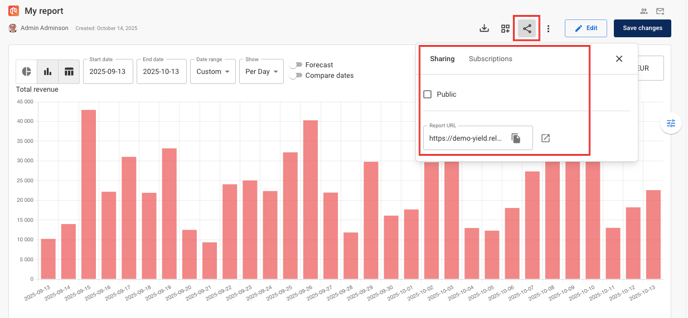
Use the sharing options in the upper-right corner, above the graphs and tables.
#### Share directly with Yield users
**Share a public report**
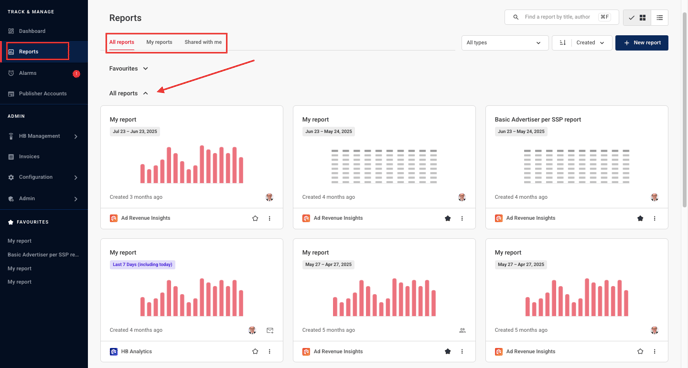
Select **Public** to make the report visible in the saved reports list. Other users with equivalent permissions can then view it.
View saved reports in **Reports → All reports** or **Shared with me**.
**Share a report link**
You can also copy the report URL from the sharing options. When another user opens the link, Yield creates a report with the same settings.
Each user's report is independent. Changes to one report do not affect the other.
**Make a copy**
Yield users can create a copy of an existing report. Click **Make a copy** in the report toolbar.
This is useful for similar reports with different filters. For example, create separate reports for different advertisers or SSPs.
#### Share a CSV file
To share a report outside your organisation, export a CSV file or subscribe recipients to periodic reports. You can also use subscriptions for Yield users.
Each subscription sends a CSV file with the raw data. It also sends a PDF containing the report graphs.
External users can receive subscribed CSV and PDF reports. They cannot access the report in the Yield interface.
{% stepper %}
{% step %}
## Subscribe to a report
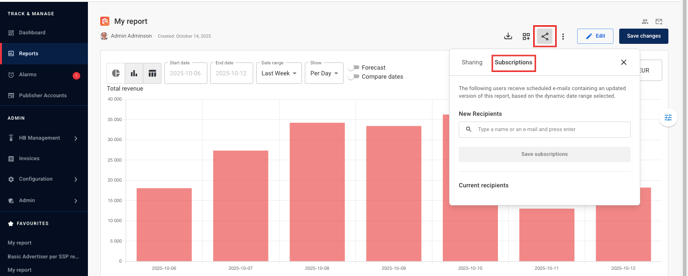
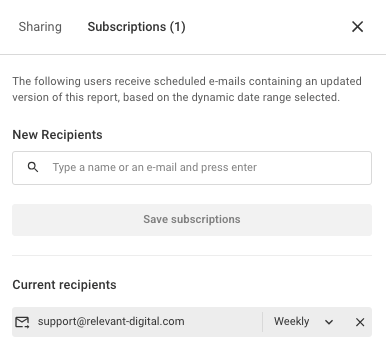
Click **Sharing** in the upper-right corner above the report. Then select the **Subscriptions** tab.
{% endstep %}
{% step %}
## Add recipients
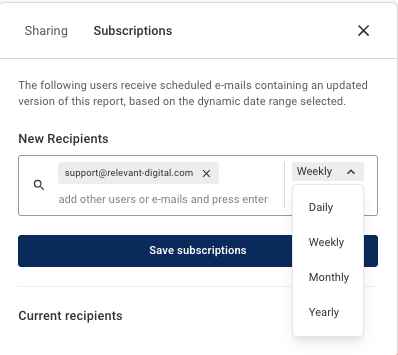
Enter the email address or name of the Yield user to subscribe. You can add multiple recipients at once.
{% endstep %}
{% step %}
## Choose the delivery frequency
Choose how often to send the report: daily, weekly, monthly or yearly.
{% endstep %}
{% step %}
## Save the subscription
Save the subscription. Recipients then appear in the **Current recipients** list.
{% endstep %}
{% endstepper %}
To manage report subscriptions, return to the **Subscriptions** tab. You can change the delivery frequency or unsubscribe a user.
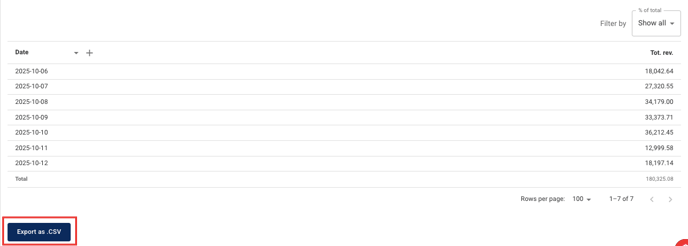
You can also export a report as a CSV file. Click **Export as .CSV** after the tables and graphs. The CSV contains data only, not graphs.
### Sharing reports between different user roles
By default, a public report saved by a [publisher user](/general-platform/user-management/publisher-users.md) is visible only to publisher users with equivalent access rights.
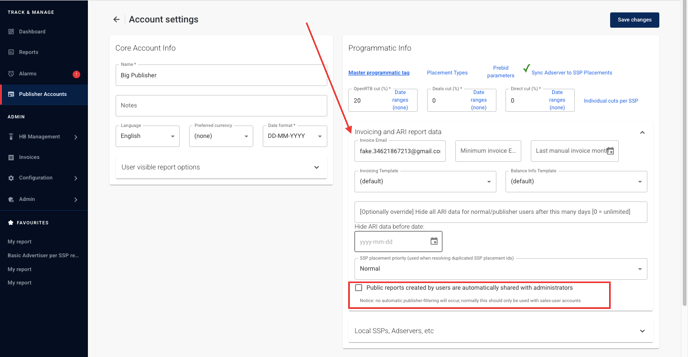
An [admin user](/general-platform/user-management/administrator-admin-users.md) can access these reports. Open the user's connected [publisher account](/general-platform/inventory-management/what-are-publisher-accounts.md). In **Invoicing and ARI report data**, select **Public reports created by users are automatically shared with administrators**.
Public admin reports remain available only to other admins.
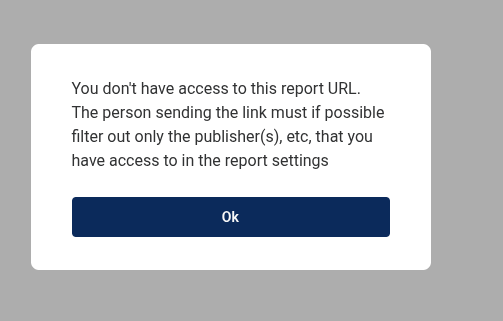
An admin can share a report with a publisher user. The report must contain only data the user can access. Otherwise, the following pop-up appears.
---
# Agent Instructions
This documentation is published with GitBook. GitBook is the documentation platform designed so that both humans and AI agents can read, navigate, and reason over technical content effectively. Learn more at gitbook.com.
## Querying This Documentation
If you need additional information that is not directly available in this page, you can query the documentation dynamically by asking a question.
Perform an HTTP GET request on the current page URL with the `ask` query parameter, and the optional `goal` query parameter:
```
GET https://docs.relevant-digital.com/general-platform/reports-and-dashboards/sharing-reports-in-yield.md?ask=&goal=
```
`ask` is the immediate question: it should be specific, self-contained, and written in natural language.
`goal` is optional and describes the broader end goal you are ultimately trying to accomplish on behalf of the user. GitBook uses it to tailor the answer towards what is most useful for that goal.
The response will contain a direct answer to the question and relevant excerpts and sources from the documentation.
Use this mechanism when the answer is not explicitly present in the current page, you need clarification or additional context, or you want to retrieve related documentation sections.