> For the complete documentation index, see [llms.txt](https://docs.relevant-digital.com/llms.txt). Markdown versions of documentation pages are available by appending `.md` to page URLs; this page is available as [Markdown](https://docs.relevant-digital.com/hb-manager/setup/customizing-bidder-logos.md).
# Customizing Bidder Logos
This document explains how to customize bidder logos in Prebid to enhance clarity and reduce visual confusion caused by aliased bidders.
## Overview
In the Prebid environment, some bidders presented in the bidder section are “aliased bidders” of existing bidders. For example, the “Project Agora” bidder is an aliased version of the “Appnexus” bidder. This situation can also occur with agencies utilizing Supply-Side Platforms (SSPs) that are integrated directly into publishers' Prebid setups.
To enhance clarity and avoid visual confusion when multiple bidders share similar identities, we have added an option to override the default logo for the original bidder with the correct company logo. This ensures that the correct logos are displayed, making it easier to distinguish between similar bidders in your setup.
## How to Override Bidder Logos
{% stepper %}
{% step %}
## Navigate to Configuration
{% endstep %}
{% step %}
## Access Integrations
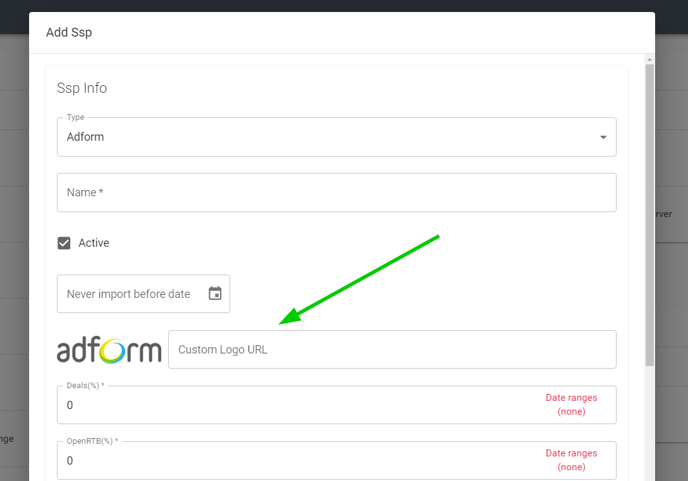
Click on the SSP to which you want to assign a new logo.
{% endstep %}
{% step %}
## Add Logo URL
Enter the URL of the logo you would like to use for the aliased bidder in the designated field.
{% endstep %}
{% endstepper %}
By implementing these changes, you can provide a more accurate visual representation of your bidders, reducing confusion and improving the overall user experience.
---
# Agent Instructions
This documentation is published with GitBook. GitBook is the documentation platform designed so that both humans and AI agents can read, navigate, and reason over technical content effectively. Learn more at gitbook.com.
## Querying This Documentation
If you need additional information that is not directly available in this page, you can query the documentation dynamically by asking a question.
Perform an HTTP GET request on the current page URL with the `ask` query parameter, and the optional `goal` query parameter:
```
GET https://docs.relevant-digital.com/hb-manager/setup/customizing-bidder-logos.md?ask=&goal=
```
`ask` is the immediate question: it should be specific, self-contained, and written in natural language.
`goal` is optional and describes the broader end goal you are ultimately trying to accomplish on behalf of the user. GitBook uses it to tailor the answer towards what is most useful for that goal.
The response will contain a direct answer to the question and relevant excerpts and sources from the documentation.
Use this mechanism when the answer is not explicitly present in the current page, you need clarification or additional context, or you want to retrieve related documentation sections.