> For the complete documentation index, see [llms.txt](https://docs.relevant-digital.com/llms.txt). Markdown versions of documentation pages are available by appending `.md` to page URLs; this page is available as [Markdown](https://docs.relevant-digital.com/technical/integration/formats-and-channels/native-integration-guide.md).
# Native Integration Guide
Configure native Prebid inventory, rendering templates, and Google Ad Manager creatives in HB Manager.
Configure native inventory with ad-unit-defined creatives in Relevant Yield.
This guide uses the **ad-unit-defined creative** approach. It also covers the recommended Prebid Universal Creative for Google Ad Manager.
For general Native implementation guidance, see the [Prebid Native documentation](https://docs.prebid.org/prebid/native-implementation.html).
### How native inventory works
Native inventory differs from banner inventory in three ways:
1. The Prebid ad unit includes a native `mediaTypes` object with requested OpenRTB assets.
2. The rendering template includes a macro for each requested asset.
3. A Prebid Universal Creative in Google Ad Manager populates those macros.
{% hint style="info" %}
Relevant Yield also supports ad-server-defined creatives and custom renderers. Ad-unit-defined creatives usually provide more reliable rendering.
{% endhint %}
### 1. Configure native requests
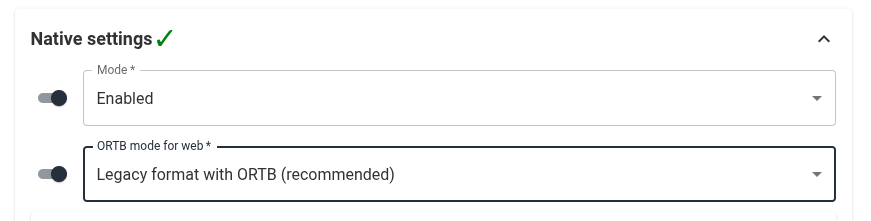
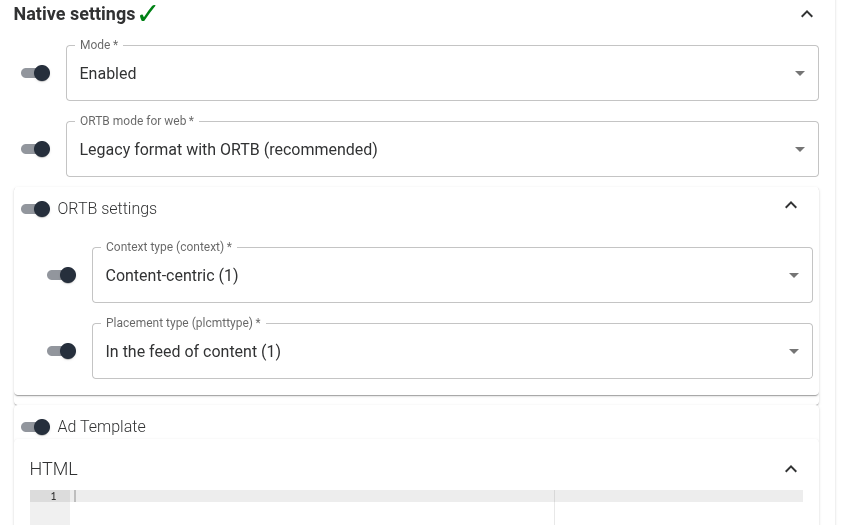
Open **Prebid Parameters → Native Settings** at the placement, site, publisher, or placement type level.
#### Choose the delivery mode
| Mode | Behavior |
| --------------- | --------------------------------------------- |
| **Disabled** | Does not request native demand. |
| **Enabled** | Requests native and banner demand. |
| **Native Only** | Requests native demand without banner demand. |
#### Select the OpenRTB format
Choose the OpenRTB format in **Native Settings**.
We recommend **Legacy format with ORTB**. It supports bidders using Native 1.1 and 1.2.
#### Set inventory metadata
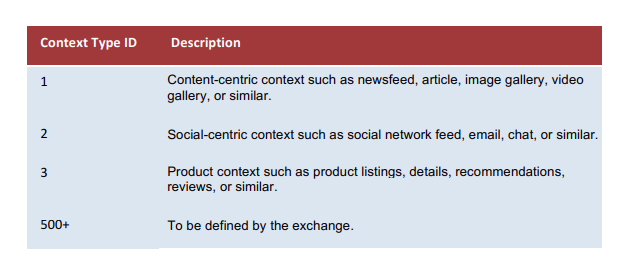
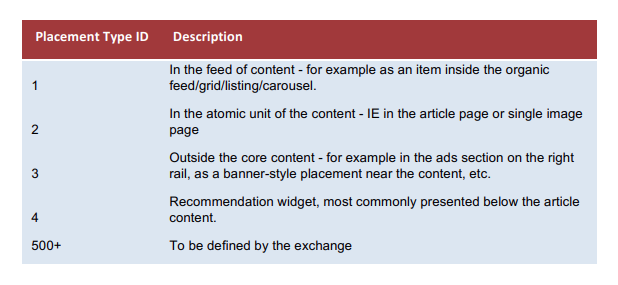
Set **Context** and **Placement type (`plcmttype`)** to describe the inventory to bidders.
**Context** describes the page where the ad renders.
**Placement type** describes the position of the ad, such as within a feed or outside core content.
#### Select native assets
Select the assets you need under **Native Settings**.
For example, request **Title**, **Body**, **Image**, and **Sponsor Link**.
{% hint style="info" %}
Confirm supported assets with your SSP account managers before finalizing the selection.
{% endhint %}
### 2. Create a native rendering template
The template receives bid assets through macros in its HTML.
For the selected assets above, use these macros:
```
hb_native_title
hb_native_body
hb_native_linkurl
hb_native_brand
hb_native_icon
```
Build the template with HTML and CSS that match your site.
### 3. Configure the Google Ad Manager creative
Native Prebid requires a Prebid Universal Creative.
The creative can target a `1x1` size in Google Ad Manager. Add size overrides matching your line-item sizes.
```html
```
{% hint style="warning" %}
Target native line items with `hb_format=native`. Exclude that key-value from banner line items to prevent conflicts.
{% endhint %}
### Get help
Contact your Solutions Engineer for help configuring Google Ad Manager line items.
---
# Agent Instructions
This documentation is published with GitBook. GitBook is the documentation platform designed so that both humans and AI agents can read, navigate, and reason over technical content effectively. Learn more at gitbook.com.
## Querying This Documentation
If you need additional information that is not directly available in this page, you can query the documentation dynamically by asking a question.
Perform an HTTP GET request on the current page URL with the `ask` query parameter, and the optional `goal` query parameter:
```
GET https://docs.relevant-digital.com/technical/integration/formats-and-channels/native-integration-guide.md?ask=&goal=
```
`ask` is the immediate question: it should be specific, self-contained, and written in natural language.
`goal` is optional and describes the broader end goal you are ultimately trying to accomplish on behalf of the user. GitBook uses it to tailor the answer towards what is most useful for that goal.
The response will contain a direct answer to the question and relevant excerpts and sources from the documentation.
Use this mechanism when the answer is not explicitly present in the current page, you need clarification or additional context, or you want to retrieve related documentation sections.