> For the complete documentation index, see [llms.txt](https://docs.relevant-digital.com/llms.txt). Markdown versions of documentation pages are available by appending `.md` to page URLs; this page is available as [Markdown](https://docs.relevant-digital.com/technical/integration/formats-and-channels/setting-up-prebid-amp-in-hb-manager.md).

# Setting up Prebid AMP in HB Manager

Configure Prebid AMP placements in HB Manager.

Use this guide when your site already serves AMP pages.

For general AMP guidance, see the [official AMP documentation](https://amp.dev/).

### 1. Enable AMP for placements

Enable AMP from **Prebid parameters**. Configure the setting at these levels:

1. **Global** — **HB Management → Prebid Parameters**.
2. **Placement type** — **HB Management → Placement Types** or the account's **Placement Types**.
3. **Account, site, or placement** — Use the relevant account page.
4. **Prebid configuration** — Use the site's configuration on the account page.

{% hint style="info" %}
Settings apply in this order. Lower levels can override higher-level settings.
{% endhint %}

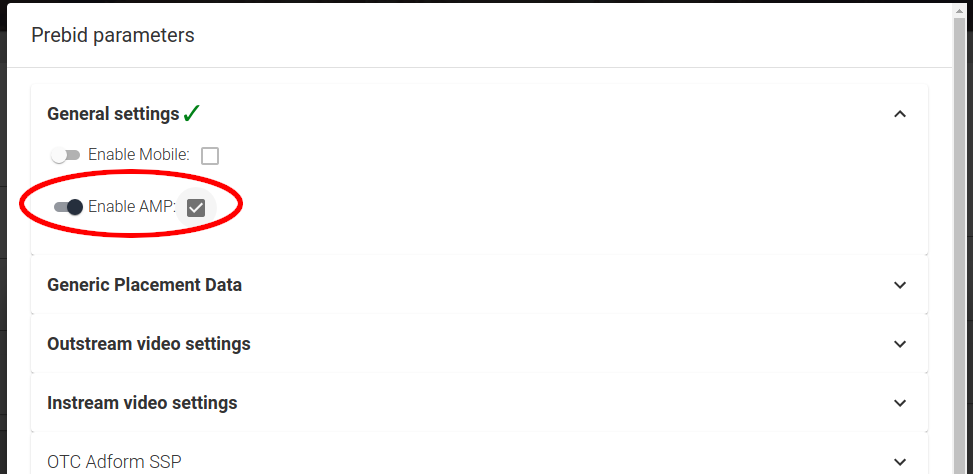
This example enables AMP for a placement type on the account page.
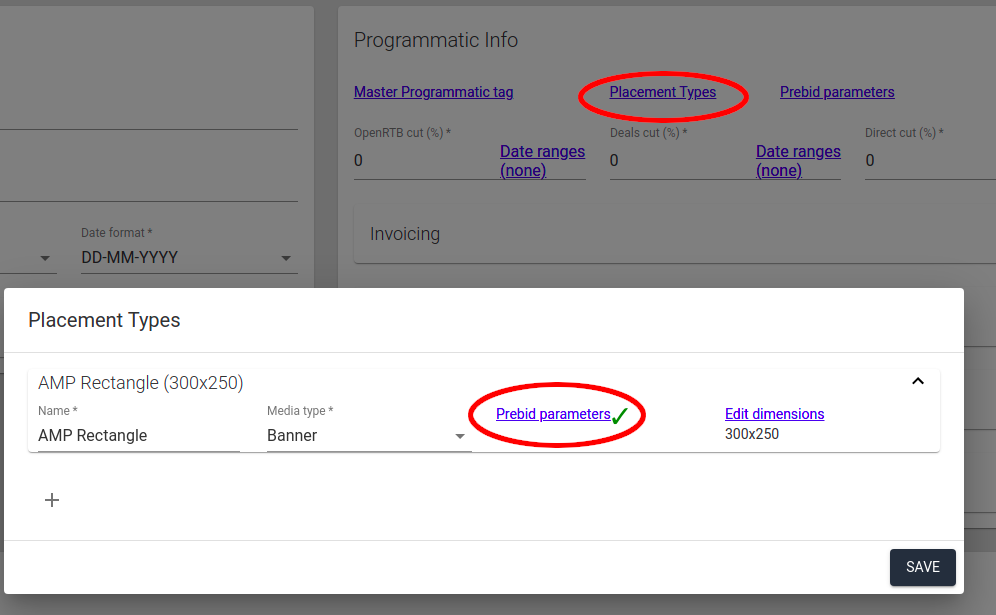
<div data-with-frame="true"><img src="https://f.hubspotusercontent40.net/hubfs/4674099/Prebid%20parameters-png.png" alt="Prebid parameters"></div>

<div data-with-frame="true"><img src="https://f.hubspotusercontent40.net/hubfs/4674099/enable_amp-png.png" alt="Enable AMP"></div>

Use the **override** switch to change a setting at the current level.

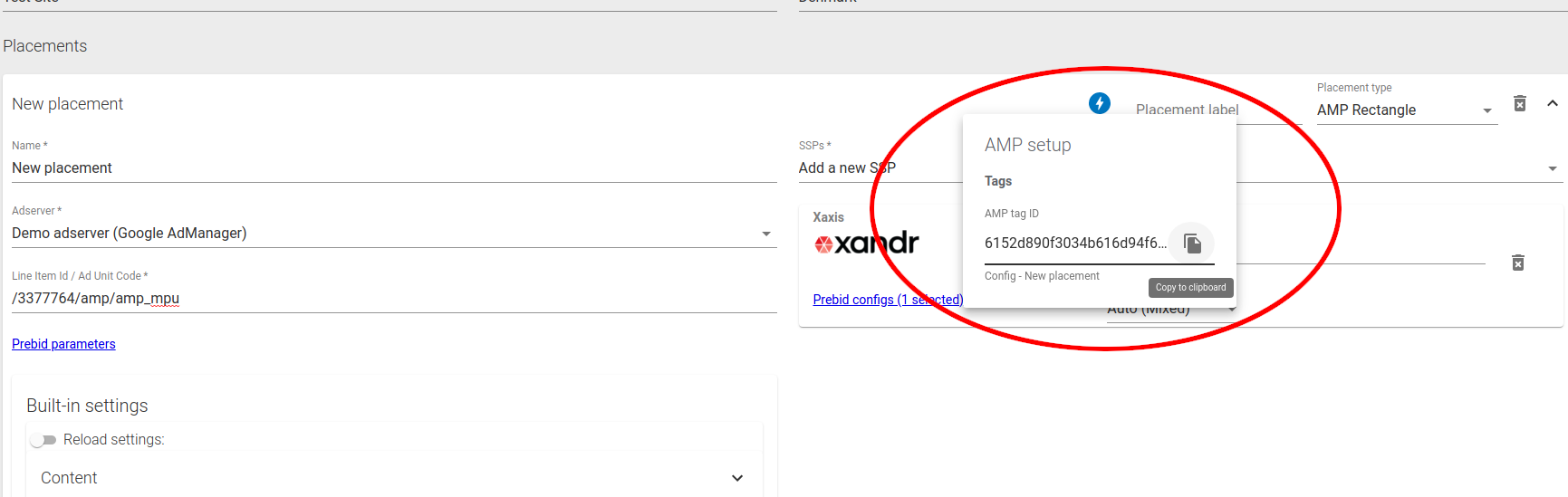
Enabled placements display an AMP icon. Select it to find the **tag ID** for the `<amp-ad>` tag.

<div data-with-frame="true"><img src="https://f.hubspotusercontent40.net/hubfs/4674099/get_tag-png.png" alt="AMP placement tag ID"></div>

### 2. Find your Prebid Server URL

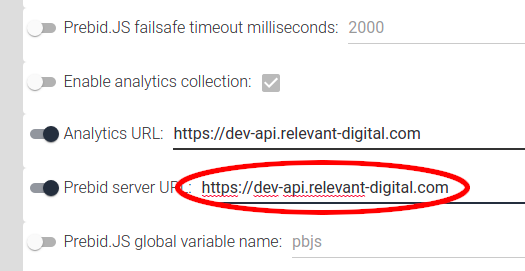
Go to **Global Settings → Global Programmatic Tag Data**.

Copy the **Prebid Server URL**.

<div data-with-frame="true"><img src="https://f.hubspotusercontent40.net/hubfs/4674099/pbs_url-png.png" alt="Prebid Server URL"></div>

{% hint style="warning" %}
Contact Relevant Yield Support if the field is empty. Do not use the **Analytics URL**.
{% endhint %}

### 3. Construct `<amp-ad>` tags

Use the placement's tag ID and your Prebid Server URL:

```html
<amp-ad
    width="300"
    height="250"
    type="doubleclick"
    data-slot="/3377764/amp/amp_mpu"
    data-block-on-consent
    rtc-config='{"urls": ["https://dev-api.relevant-digital.com/openrtb2/amp?tag_id=6152d890f3034b616d94f6cd_6152d7c77c3a182f1994f6ca&gdpr_consent=CONSENT_STRING"]}'
>
</amp-ad>
```

{% hint style="info" %}
The `CONSENT_STRING` macro requires a CMP and an [`<amp-consent>` element](https://amp.dev/documentation/components/amp-consent/).
{% endhint %}

Construct the `rtc-config` URL as follows:

`[server]/openrtb2/amp?tag_id=[tag]&gdpr_consent=CONSENT_STRING`

* `[server]` — The **Prebid Server URL**.
* `[tag]` — The placement's **tag ID**.

{% hint style="warning" %}
Each request must have a unique URL when the same `tag_id` appears multiple times. Otherwise, browsers can queue requests and reduce fill rates.
{% endhint %}

Add a unique dummy parameter:

```
...&dummy_parameter=ATTR(data-amp-slot-index)
```

### 4. Enable cookie syncing

Enable cookie syncing for active bidders.

Each site with an AMP-enabled placement has a cookie-sync HTML file. It updates with the site's enabled bidders.

Embed the file with an `<amp-iframe>`:

```html
<amp-iframe width="1" title="User Sync"
    height="1"
    sandbox="allow-scripts allow-same-origin"
    frameborder="0"
    src="https://dev-api.relevant-digital.com/static/tags/5f8fe7a613e24b27eb3303b9_cookiesync.html">
  <amp-img layout="fill" src="data:image/gif;base64,R0lGODlhAQABAIAAAP///wAAACH5BAEAAAAALAAAAAABAAEAAAICRAEAOw==" placeholder></amp-img>
</amp-iframe>
```

Replace `src` with the site's cookie-sync URL.

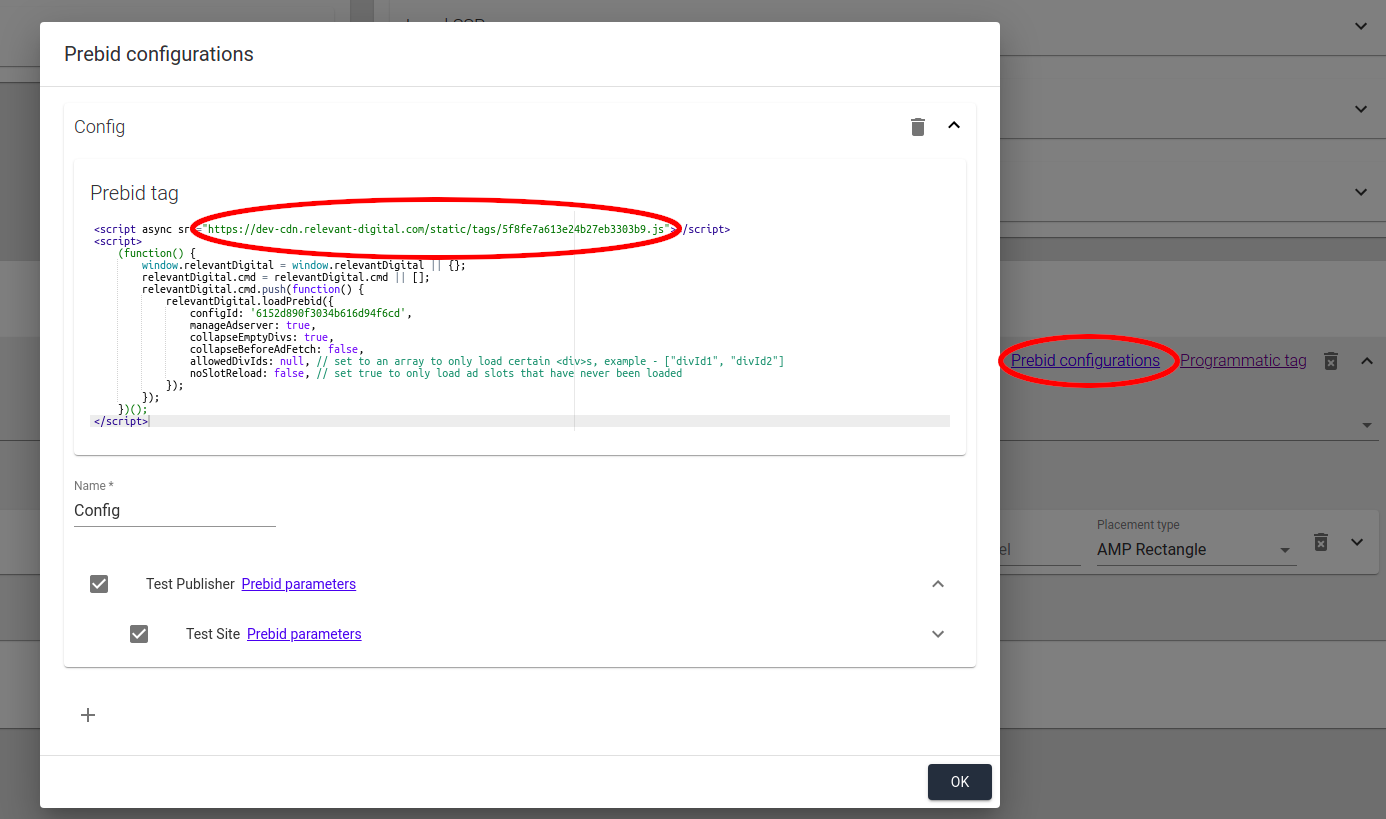
Start with the site's regular Prebid configuration URL. Replace `.js` with `_cookiesync.html`.

<div data-with-frame="true"><img src="https://f.hubspotusercontent40.net/hubfs/4674099/cookie_sync_url-png.png" alt="Cookie-sync URL"></div>

Open **Prebid configurations** for the site. Copy the URL at the top of **Prebid tag**.

### Example

<https://example-cdn.relevant-digital.com/static/tags/abcd.js>

becomes

<https://example-cdn.relevant-digital.com/static/tags/abcd\\_cookiesync.html>


---

# Agent Instructions
This documentation is published with GitBook. GitBook is the documentation platform designed so that both humans and AI agents can read, navigate, and reason over technical content effectively. Learn more at gitbook.com.

## Querying This Documentation
If you need additional information that is not directly available in this page, you can query the documentation dynamically by asking a question.

Perform an HTTP GET request on the current page URL with the `ask` query parameter, and the optional `goal` query parameter:

```
GET https://docs.relevant-digital.com/technical/integration/formats-and-channels/setting-up-prebid-amp-in-hb-manager.md?ask=<question>&goal=<endgoal>
```

`ask` is the immediate question: it should be specific, self-contained, and written in natural language.
`goal` is optional and describes the broader end goal you are ultimately trying to accomplish on behalf of the user. GitBook uses it to tailor the answer towards what is most useful for that goal.

The response will contain a direct answer to the question and relevant excerpts and sources from the documentation.

Use this mechanism when the answer is not explicitly present in the current page, you need clarification or additional context, or you want to retrieve related documentation sections.