> For the complete documentation index, see [llms.txt](https://docs.relevant-digital.com/llms.txt). Markdown versions of documentation pages are available by appending `.md` to page URLs; this page is available as [Markdown](https://docs.relevant-digital.com/technical/integration/formats-and-channels/setting-up-prebid-video.md).
# Setting up Prebid Video
Configure outstream and instream Prebid Video placement types in HB Manager.
Configure Prebid Video placement types in HB Manager.
Prebid Video supports **outstream** and **instream** inventory. The outstream format uses the built-in renderer.
For player-side instream setup, see [Instream video with HBM and GAM](/technical/integration/formats-and-channels/instream-video-with-hbm-and-gam.md).
### Configure outstream video
Use outstream placement types for video-only inventory or combined display and video inventory.
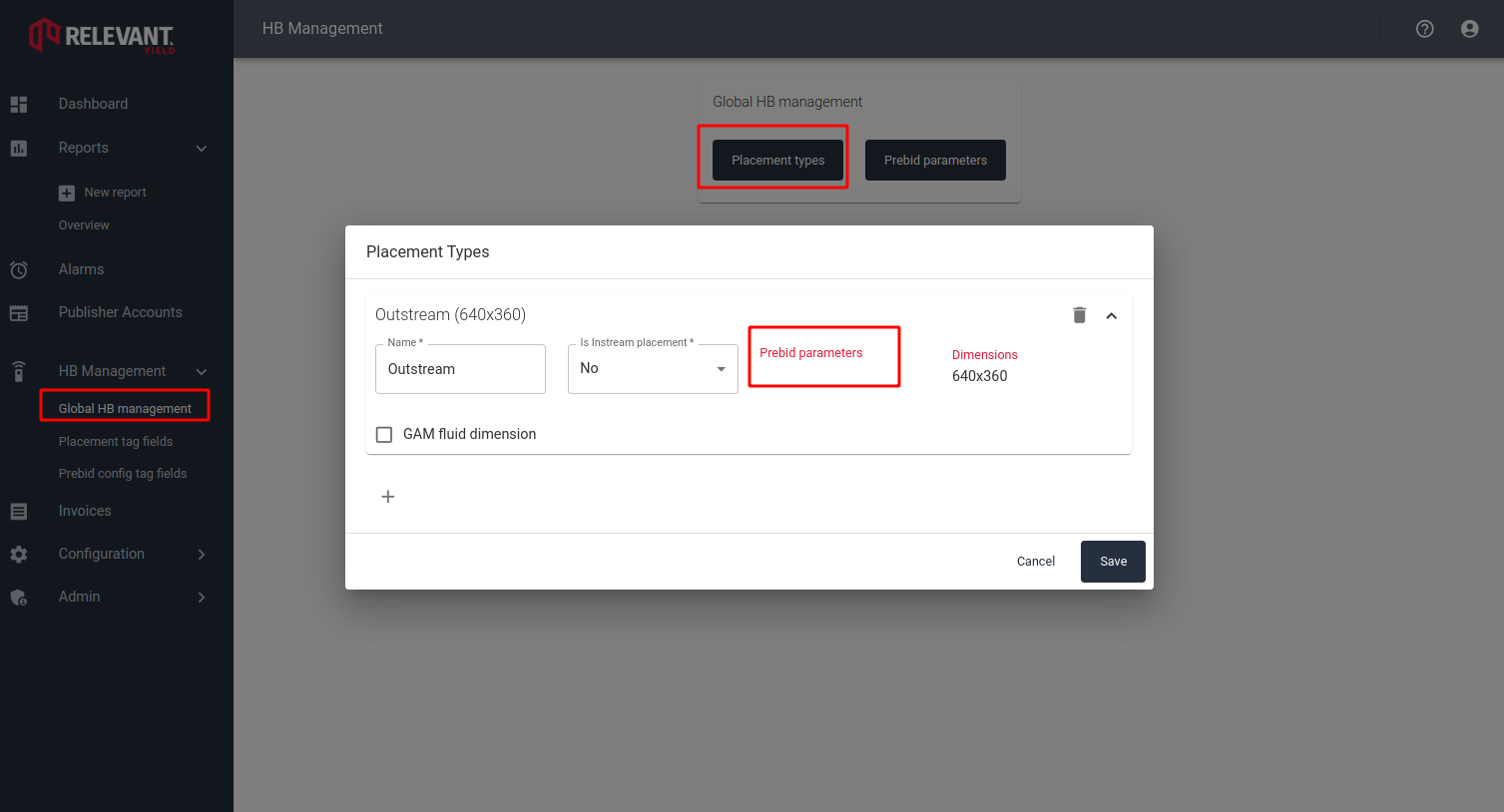
1. Go to **HB Management → Global HB Management → Placement types**.
2. Create a placement type.
3. Configure it globally, or override it at publisher or website level.
 #### Configure Prebid parameters
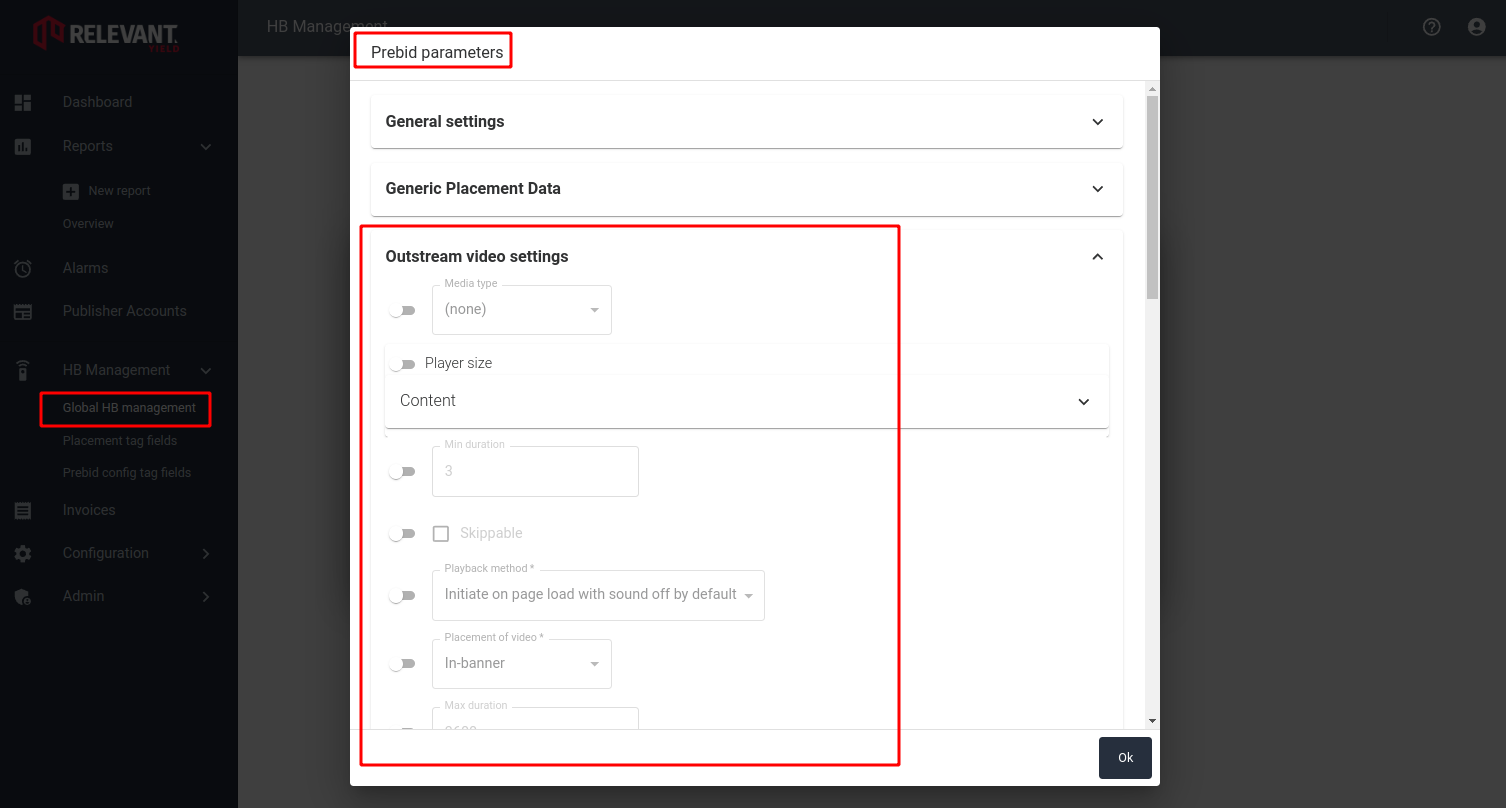
Open **Prebid parameters** for the new placement type.
#### Configure Prebid parameters
Open **Prebid parameters** for the new placement type.
 | Setting | Description |
| ------------------------------------------------------ | ---------------------------------------------------------------------------------------------------------------------- |
| **Media type** | Choose **Outstream** or **Banner + Outstream**. The combined option selects the highest-paying display or video offer. |
| **Player size** | Set the default player dimensions. Match the placement width when using display and video together. |
| **Min duration** and **Max duration** | Set the accepted video length in seconds. |
| **Skippable**, **Skip text**, and **Skip button text** | Control the skip experience. |
| **Playback method** | Choose a method that suits your audience and local requirements. |
| **Ad text** | Set the label displayed on the player. |
| **Allow VAST to override player skip settings** | Let each VAST response control its skip behavior. |
| **Expand time (ms)** | Set the player expansion duration. Use `0` to start fully expanded. |
| **End behavior** | Choose **Collapse**, **Replay**, or **Hide control bar**. |
### Configure instream video
Use instream placement types for video inventory requested by your player.
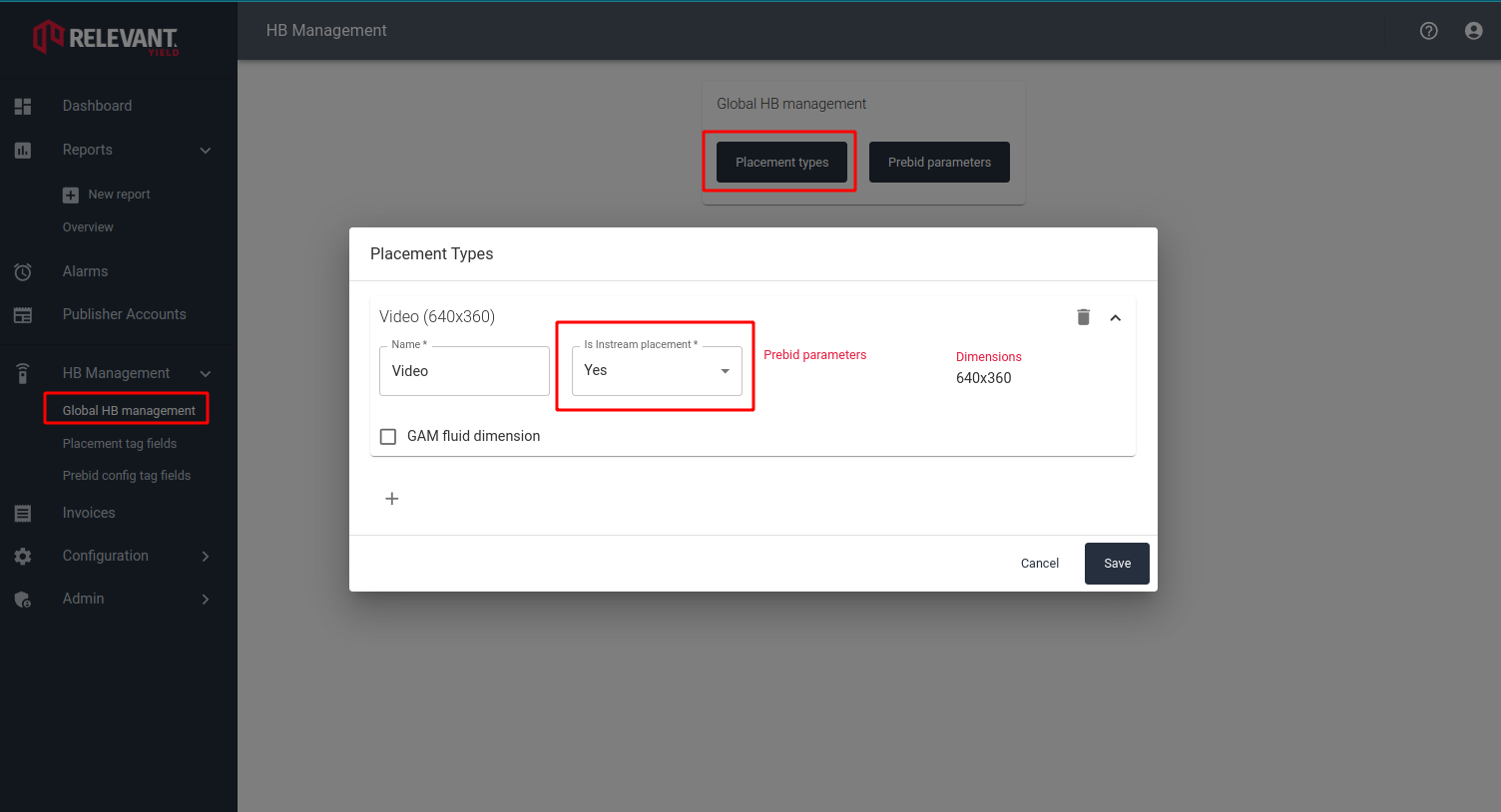
1. Go to **HB Management → Global HB Management → Placement types**.
2. Create a placement type.
3. Set **Media type** to **Instream**.
| Setting | Description |
| ------------------------------------------------------ | ---------------------------------------------------------------------------------------------------------------------- |
| **Media type** | Choose **Outstream** or **Banner + Outstream**. The combined option selects the highest-paying display or video offer. |
| **Player size** | Set the default player dimensions. Match the placement width when using display and video together. |
| **Min duration** and **Max duration** | Set the accepted video length in seconds. |
| **Skippable**, **Skip text**, and **Skip button text** | Control the skip experience. |
| **Playback method** | Choose a method that suits your audience and local requirements. |
| **Ad text** | Set the label displayed on the player. |
| **Allow VAST to override player skip settings** | Let each VAST response control its skip behavior. |
| **Expand time (ms)** | Set the player expansion duration. Use `0` to start fully expanded. |
| **End behavior** | Choose **Collapse**, **Replay**, or **Hide control bar**. |
### Configure instream video
Use instream placement types for video inventory requested by your player.
1. Go to **HB Management → Global HB Management → Placement types**.
2. Create a placement type.
3. Set **Media type** to **Instream**.
 #### Configure Prebid parameters
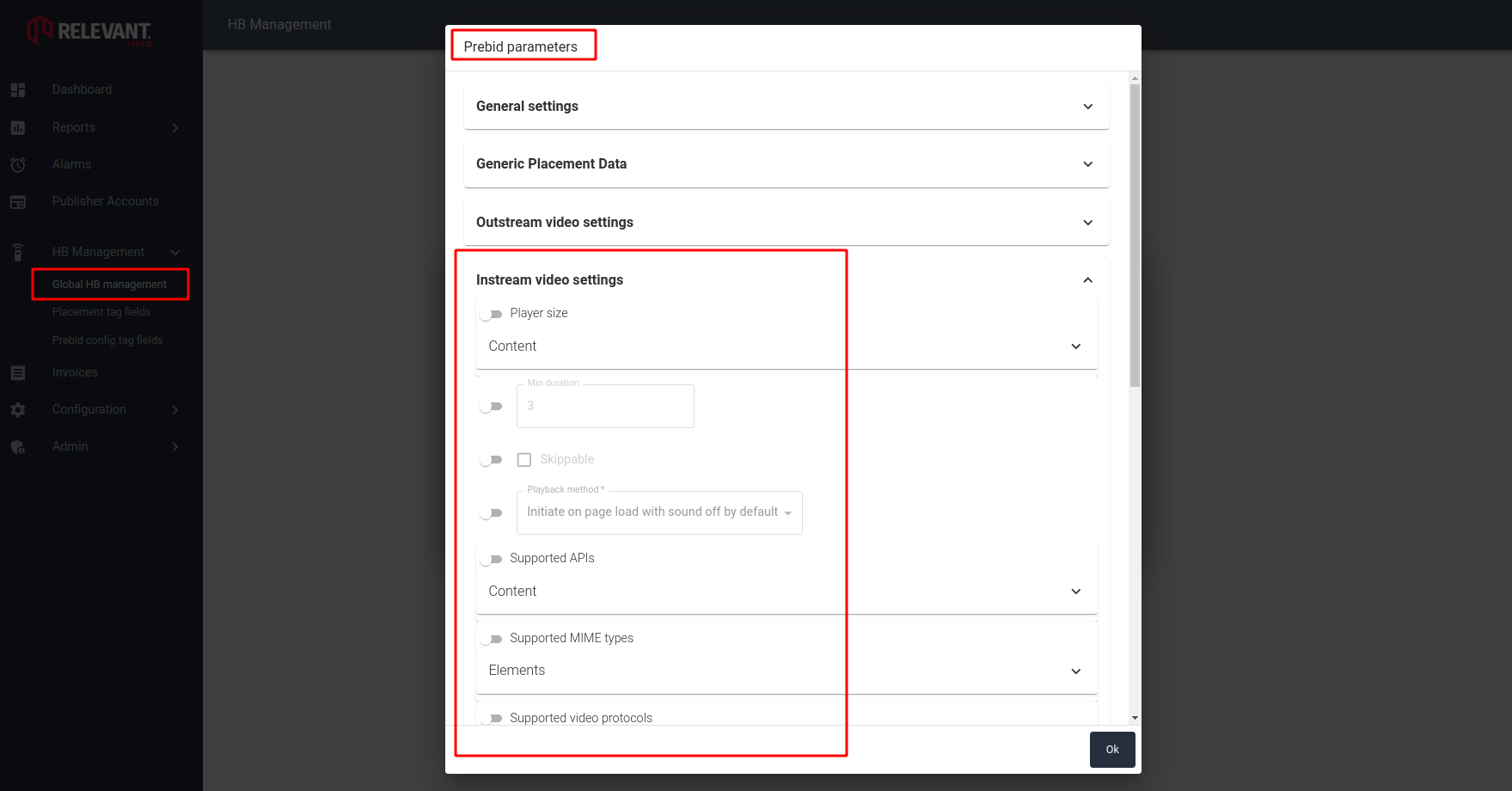
Configure these values for the player and accepted video responses:
| Setting | Description |
| ------------------------------------- | ----------------------------------------- |
| **Player size** | Set the default player dimensions. |
| **Min duration** and **Max duration** | Set the accepted video length in seconds. |
| **Skippable** and **Playback method** | Control playback behavior. |
| **Supported APIs** | Select accepted ad tracking APIs. |
| **Supported MIME types** | Select accepted media formats. |
| **Supported video protocols** | Select accepted video protocols. |
{% hint style="info" %}
Prebid Video works with adapters that support video bidding. HB Analytics also supports Prebid Video.
{% endhint %}
### Get help
Contact Relevant Yield Support for help configuring your video implementation.
---
# Agent Instructions
This documentation is published with GitBook. GitBook is the documentation platform designed so that both humans and AI agents can read, navigate, and reason over technical content effectively. Learn more at gitbook.com.
## Querying This Documentation
If you need additional information that is not directly available in this page, you can query the documentation dynamically by asking a question.
Perform an HTTP GET request on the current page URL with the `ask` query parameter, and the optional `goal` query parameter:
```
GET https://docs.relevant-digital.com/technical/integration/formats-and-channels/setting-up-prebid-video.md?ask=&goal=
```
`ask` is the immediate question: it should be specific, self-contained, and written in natural language.
`goal` is optional and describes the broader end goal you are ultimately trying to accomplish on behalf of the user. GitBook uses it to tailor the answer towards what is most useful for that goal.
The response will contain a direct answer to the question and relevant excerpts and sources from the documentation.
Use this mechanism when the answer is not explicitly present in the current page, you need clarification or additional context, or you want to retrieve related documentation sections.
#### Configure Prebid parameters
Configure these values for the player and accepted video responses:
| Setting | Description |
| ------------------------------------- | ----------------------------------------- |
| **Player size** | Set the default player dimensions. |
| **Min duration** and **Max duration** | Set the accepted video length in seconds. |
| **Skippable** and **Playback method** | Control playback behavior. |
| **Supported APIs** | Select accepted ad tracking APIs. |
| **Supported MIME types** | Select accepted media formats. |
| **Supported video protocols** | Select accepted video protocols. |
{% hint style="info" %}
Prebid Video works with adapters that support video bidding. HB Analytics also supports Prebid Video.
{% endhint %}
### Get help
Contact Relevant Yield Support for help configuring your video implementation.
---
# Agent Instructions
This documentation is published with GitBook. GitBook is the documentation platform designed so that both humans and AI agents can read, navigate, and reason over technical content effectively. Learn more at gitbook.com.
## Querying This Documentation
If you need additional information that is not directly available in this page, you can query the documentation dynamically by asking a question.
Perform an HTTP GET request on the current page URL with the `ask` query parameter, and the optional `goal` query parameter:
```
GET https://docs.relevant-digital.com/technical/integration/formats-and-channels/setting-up-prebid-video.md?ask=&goal=
```
`ask` is the immediate question: it should be specific, self-contained, and written in natural language.
`goal` is optional and describes the broader end goal you are ultimately trying to accomplish on behalf of the user. GitBook uses it to tailor the answer towards what is most useful for that goal.
The response will contain a direct answer to the question and relevant excerpts and sources from the documentation.
Use this mechanism when the answer is not explicitly present in the current page, you need clarification or additional context, or you want to retrieve related documentation sections.